

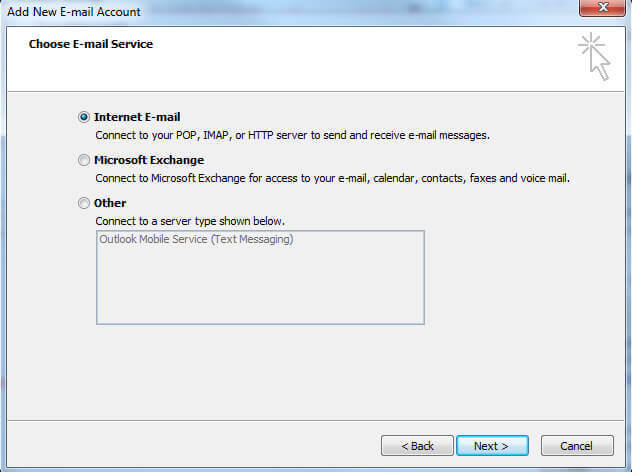
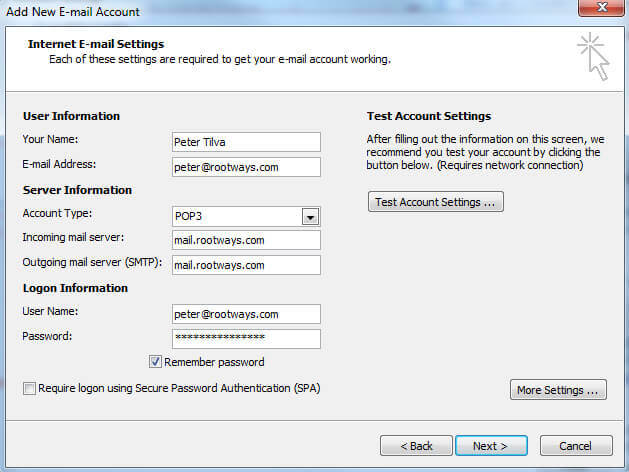
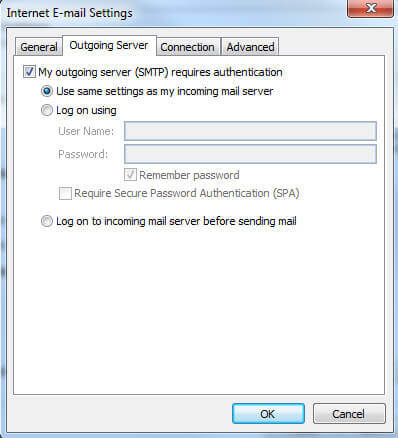
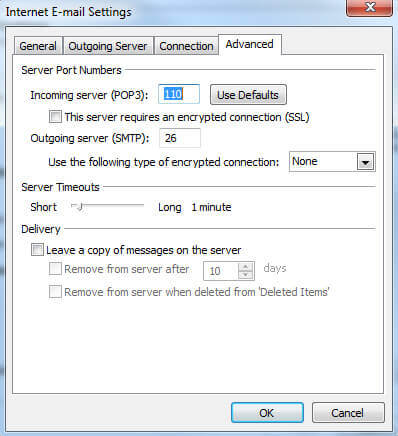
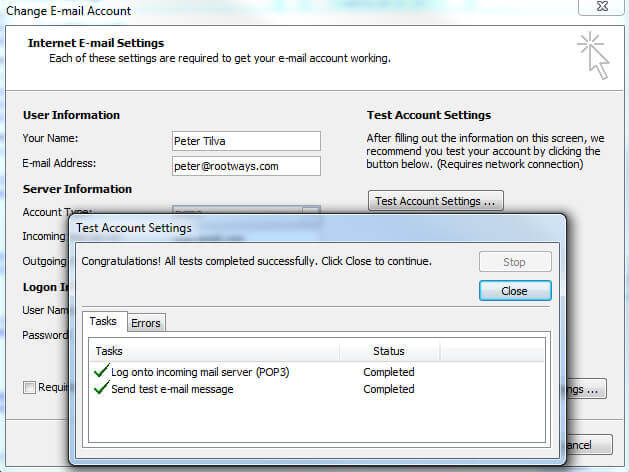
Instructions to setup your cpanel email in outlook
Click here for the instructions to setup a cPanel email in Outlook 2016.
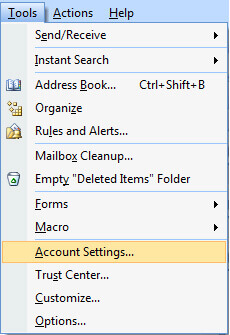
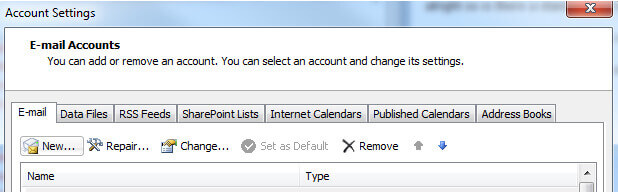
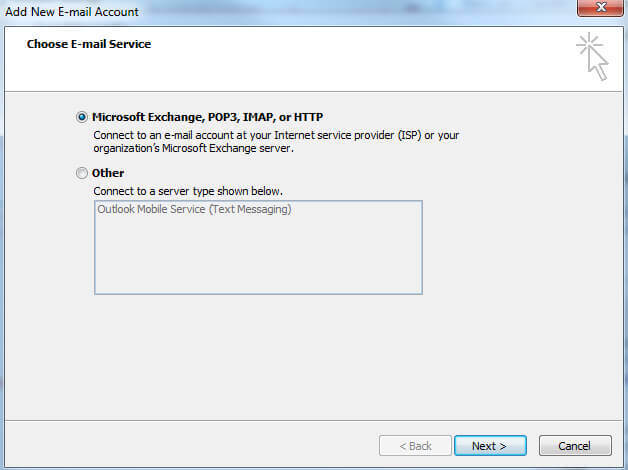
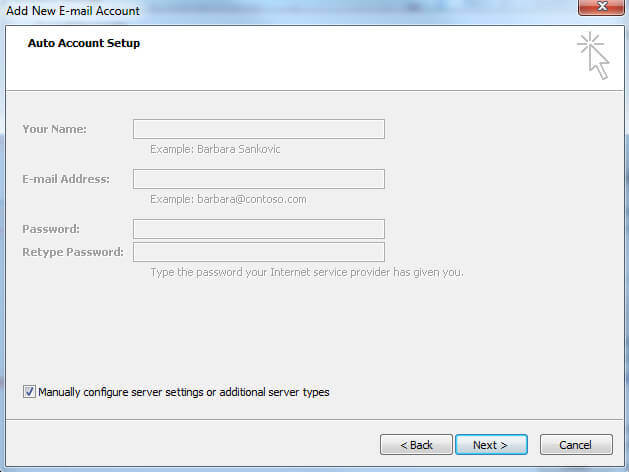
-
Magento 2 Elavon/Converge Payment Module
Capture payments from the credit and debit cards to your Elavon account using our Magento 2 Elavon Payment Gateway extension.
Buy Now -

Magento Elavon/Converge Payment Module
Magento Elavon payment gateway extension for capture payment from credit and debit card to your Elavon account.
Buy Now -

Magento 2 Beanstream Payment Gateway - Bambora Payment Module
MaBambora payment gateway module for Magento 2 allows you to capture payment from credit and debit card to your Beanstream account.
Buy Now -
Magento 2 Vend POS Integration
Integrate VEND POS with Magento 2, synchronize product, inventory, customer and order instantly between Vend POS and Magento 2
Buy Now -
Magento Vend POS Integration
Integrate VEND POS with Magento, synchronize product, customer and order with Vend POS
Buy Now -

Magento 2 Mega Menu
Rootways Mega Menu is a Magento 2 extension, and it is your easy and fast solution to create the best sitemap right on the main navigation of your Magento 2 website.
Buy Now -

Magento Mega Menu Extension
Mega Menu extension for magento easily creates mega menu for main navigation without technical knowledge
Buy Now -
Magento Product FAQ Extension
Product FAQ extension for magento adds question answer on product page, also Product and category specific FAQ
Buy Now